For buyers
Create a campaign
The five setup steps from name to launch, plus what you can change while a campaign is open and after it closes.
5 min read
To create a campaign, go to CampaignsNew campaign and follow the five steps of the guided setup. Nothing reaches a supplier until you press Open campaign on the last step.
The steps show across the top of each screen, in place of the campaign's tabs. Select any step to go back to it. Exit guide leaves the setup, and Resume setup on the campaign's overview brings you back.
Step 1: Basics
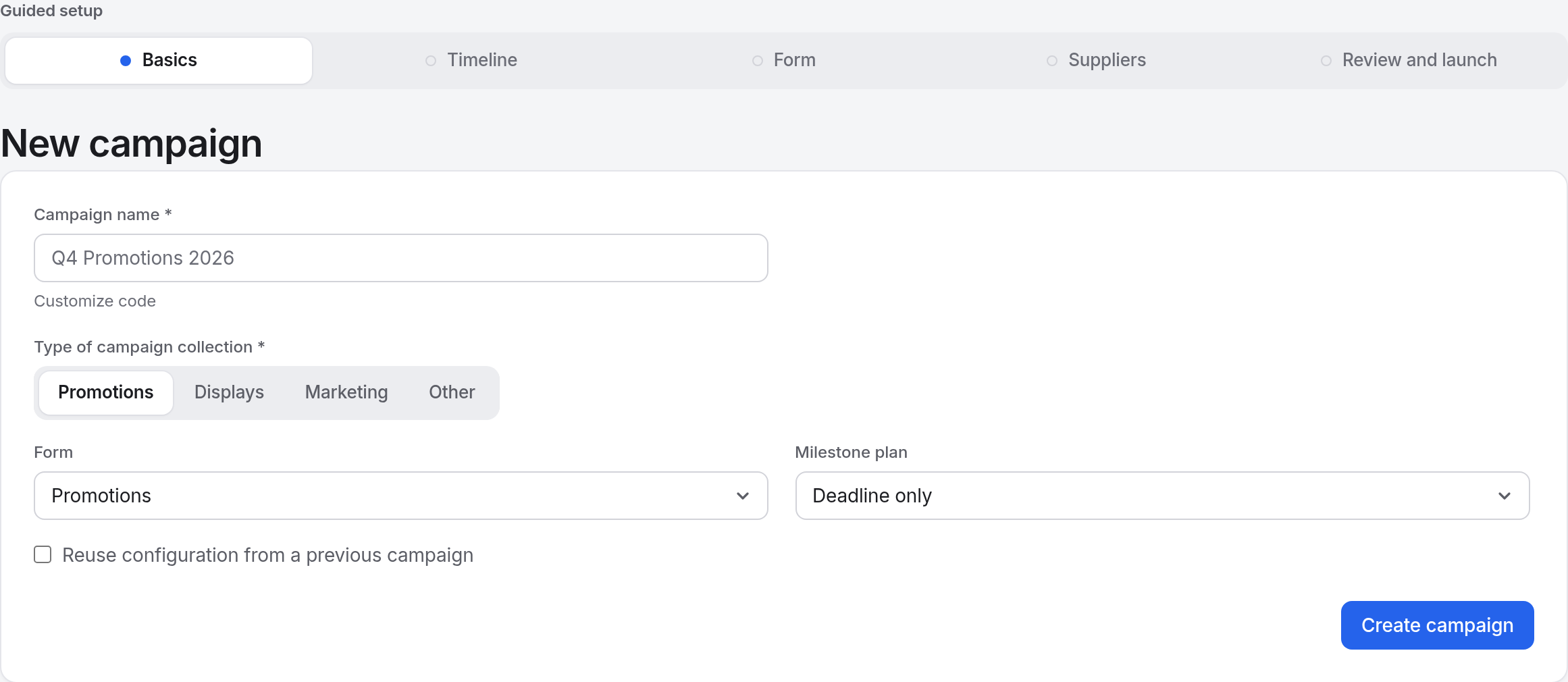
Enter the campaign name
The campaign code comes from the name, and every reference ID starts with it: "Holiday 2026 Endcaps" becomes
HOL26END. To choose your own code, select Customize code.Choose the type of collection
Promotions, Displays, or Marketing picks the Library form of that name under Form. Other picks Start blank.
Optional: choose a different form or a milestone plan
Form lists every form in your Library. Milestone plan adds a plan's milestones around the deadline; Deadline only adds none.
Optional: reuse a previous campaign
Open Reuse configuration from a previous campaign and pick one under Clone from. It copies the form, the milestones, and the reminders, and if you tick the box, the contacts. It never copies submitted lines. While a clone is picked, Form and Milestone plan read From the cloned campaign.
Select Create campaign
The campaign is saved as a draft with its deadline two weeks out, and the guide moves to step 2, where you set the real one.
Step 2: Timeline
Set the deadline on its row of the milestone table: the campaign closes at the end of that day in your timezone. Under At the deadline, Close refuses anything filed after it, and Accept late keeps filing open and marks each late line Late on the Received table.
Add milestones with Add a step or Apply a plan, add reminders from each milestone's Add a reminder list, and select Save and continue. Every milestone is optional. See Milestones and reminders.
Step 3: Form
The form starts from the one you chose on step 1. Add or edit fields, then select Save and continue. To start from a different form, open Import a template. See Intake forms and field types.
Step 4: Suppliers
Paste your contacts into Bulk import
Write one contact per line:
email, Contact Name, Supplier A; Supplier B. Separate a broker's suppliers with semicolons. Select Import all. New suppliers are added to your directory.Or invite one contact at a time
Open Invite one contact, enter the email, tick each supplier the contact works for, and select Invite contact.
Select Continue
A contact sees only the lines of the suppliers you tick for them. See Invite suppliers.
Step 5: Review and launch
| Panel | What to check |
|---|---|
| Before it opens | Counts of contacts, suppliers, and fields, and the deadline. An exclamation mark flags a problem, such as a supplier with no contact, and links to the fix. |
| Timeline | The deadline and milestones as dates. |
| Preview | The Invitation email as a supplier receives it, and the Entry table they fill in. |
| Briefing materials | Files that every invited contact can download. Select Choose file, then Upload. |
While it is open
| To | Do this |
|---|---|
| See who has submitted | The Suppliers list on the overview shows each supplier as Submitted, Saved, or Invited. Invited turns amber after two reminders. |
| Watch lines arrive | Open the Received tab. It is read-only until the close. |
| Move the deadline or change milestones | Edit them on Setup & forms and select Save milestones. Milestones that follow the deadline move with it. |
| Switch between Close and Accept late | Change At the deadline on Setup & forms and select Save milestones. |
| Change the form | Edit it on Setup & forms and select Save form. Lines already filed keep their values. |
| Add suppliers | Invite them on Suppliers & access. A contact added now gets the invitation straight away. |
| Message every supplier | Use Write an announcement on the overview. It emails every participating contact. |
| Add a co-manager | Open Co-managers on Suppliers & access, choose a colleague, and select Grant access. They get full rights on this campaign only. |
| Close early | In the campaign's More menu, select Close submissions now, then Close now. |
After it closes
You and every co-manager get a notification and an email saying review is open. Decide each line on the Received tab. See Received.
To let one supplier fix lines
Select Ask for changes on the Received table or on a line's page. Only those lines reopen, with your note.
To unlock all of one supplier's lines
On a line's page, select Unlock all lines.
To run the whole round again
In the campaign's More menu, select Reopen campaign and set a new deadline. Every supplier can submit again.
To start next season's campaign
Once the campaign is complete, select Start next campaign in the Lifecycle card. It copies the form, the timeline, and the suppliers into a new draft.
Good to know
- Pasting the same bulk import twice is safe. Existing contacts and suppliers aren't duplicated.
- Pick the campaign code with care. Suppliers quote it in every reference ID for the life of the campaign.