For buyers
Invite suppliers
Add suppliers, invite their contacts to a campaign, and let one supplier edit after the close.
4 min read
You invite supplier contacts to each campaign and choose which suppliers each contact works for. A contact sees only those suppliers' lines, and only on campaigns you invite them to.
Add a supplier
In the rail, click Suppliers. Enter a Supplier name and, optionally, a Code and your Internal ID, then click Add supplier. The code appears in reference IDs, so ACME gives Q4PROMO-ACME-003. The bulk import also adds any supplier it does not recognise, so check spellings: Sunrise Farm and Sunrise Farms become two suppliers.
Invite contacts
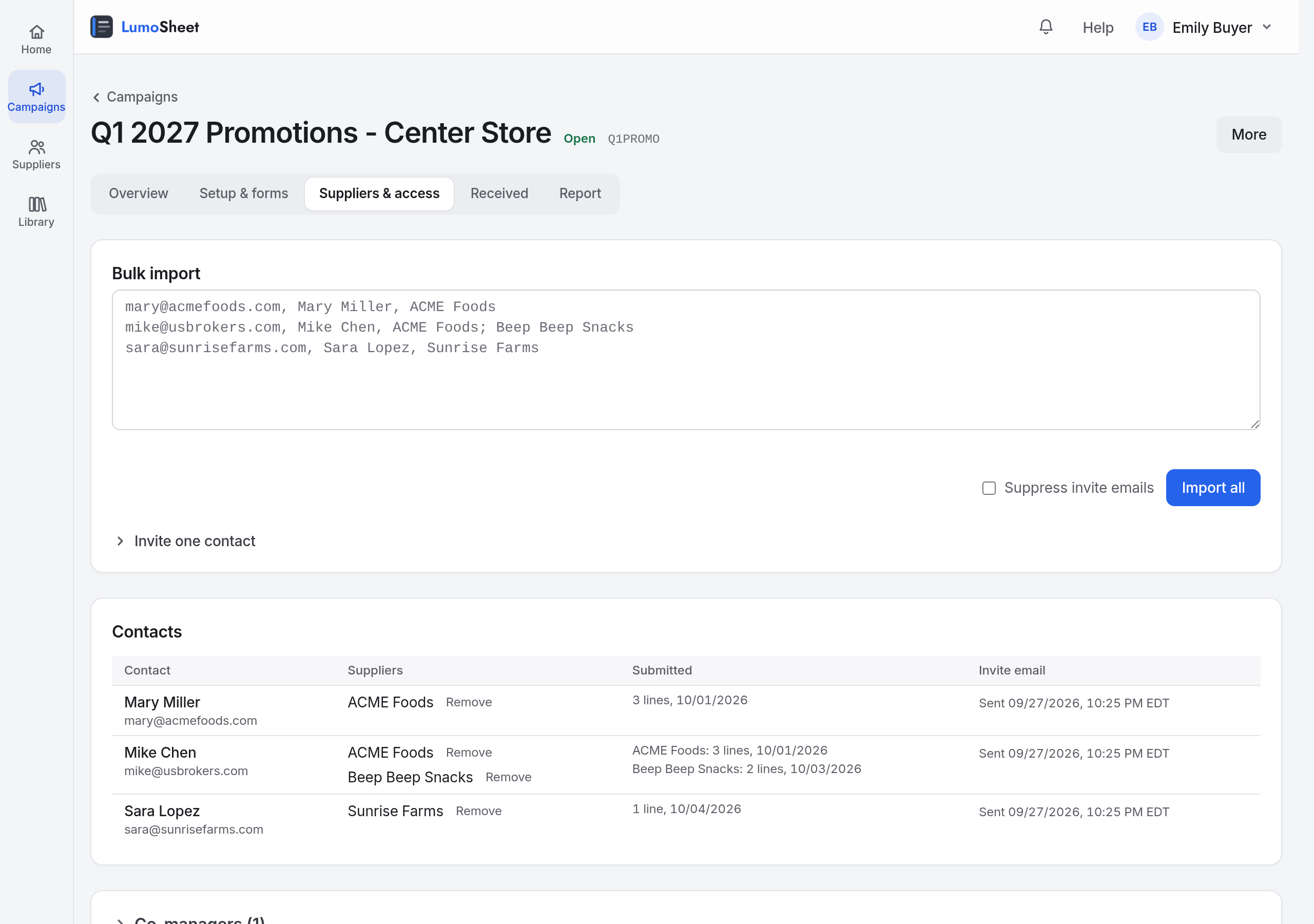
Open the campaign's Suppliers & access tab
In a new campaign, this is step 4 of the wizard.
Paste one contact per line into Bulk import
mary@acmefoods.com, Mary Miller, ACME Foods
mike@usbrokers.com, Mike Chen, ACME Foods; Beep Beep Snacks
Separate email, name, and supplier with commas. For a broker who works for several brands, separate the suppliers with semicolons. The broker then sees each brand's lines and picks the brand when they submit.
Click Import all
If some lines are skipped, fix them and paste the whole block again. Nobody is added twice.
To add one person, open Invite one contact, tick the suppliers they work for, and click Invite contact. Tick Suppress invite emails to add contacts without emailing them.
| Campaign stage | When the invitation sends |
|---|---|
| Draft | When you open the campaign. |
| Open | Immediately. |
| Closed | Immediately. Grant edit access to their submission is ticked by default, so the contact can still add lines. |
A new contact gets a Set your password link in the invitation. It lasts 14 days. After that, they use Forgot your password? on the sign-in page.
Check who is on the campaign
The Contacts table lists each contact, their suppliers, what each supplier has submitted, and the invite email state. Click Remove beside a supplier to take it away from that contact. While the campaign is open, the Remind button emails the contacts of suppliers with nothing submitted.
Let a supplier edit after the close
After the close, open one of the supplier's lines from Received and click one of these.
| Button | What the supplier can change |
|---|---|
| Ask for changes | One pending line, with your note. See Review and decide. |
| Unlock this line | One line that already has a decision. |
| Unlock all lines | All of that supplier's lines, and they can add new ones. |
When a supplier clicks Request edit access, you are notified and the request appears under Revision requests at the top of the campaign's Overview, and on the line's page when it is about one line. Click Approve or Reject. Prefer this to Reopen campaign, which unlocks and notifies every supplier.
Add a co-manager
A co-manager has your rights on this campaign only. At the foot of Suppliers & access, open Co-managers, choose a colleague, and click Grant access. Revoke removes them. For what suppliers see, read the supplier guide.