For suppliers
Submitting as a supplier
Accept your invitation, enter or upload your lines, fix what the buyer asks for, and read their decisions.
5 min read
As a supplier, you submit lines to a buyer's campaign, online or in an Excel workbook, and change them until the deadline. The buyer's decisions come back to you by email and on the campaign page.
Accept your invitation
In the invitation email, click Set your password
The link works once and lasts 14 days. Your email address is your username. Choose a password of at least 8 characters.
Answer the setup questions
Pick your timezone, how you write numbers and dates, and whether you want one email per update or one summary a day. To leave the defaults, click Skip for now. You can change any of it later in Your nameSettings.
If the link expired or you lost the email, click Forgot your password? on the sign-in page. The reset link lasts 60 minutes.
Find your campaign
Home starts with Action required, the lines that need something from you. Open requests lists each open campaign with a Start, Continue, or Add lines button. Campaigns lists every campaign you are invited to. The Start your submission link in an invitation or a reminder opens the entry grid for that brand directly.
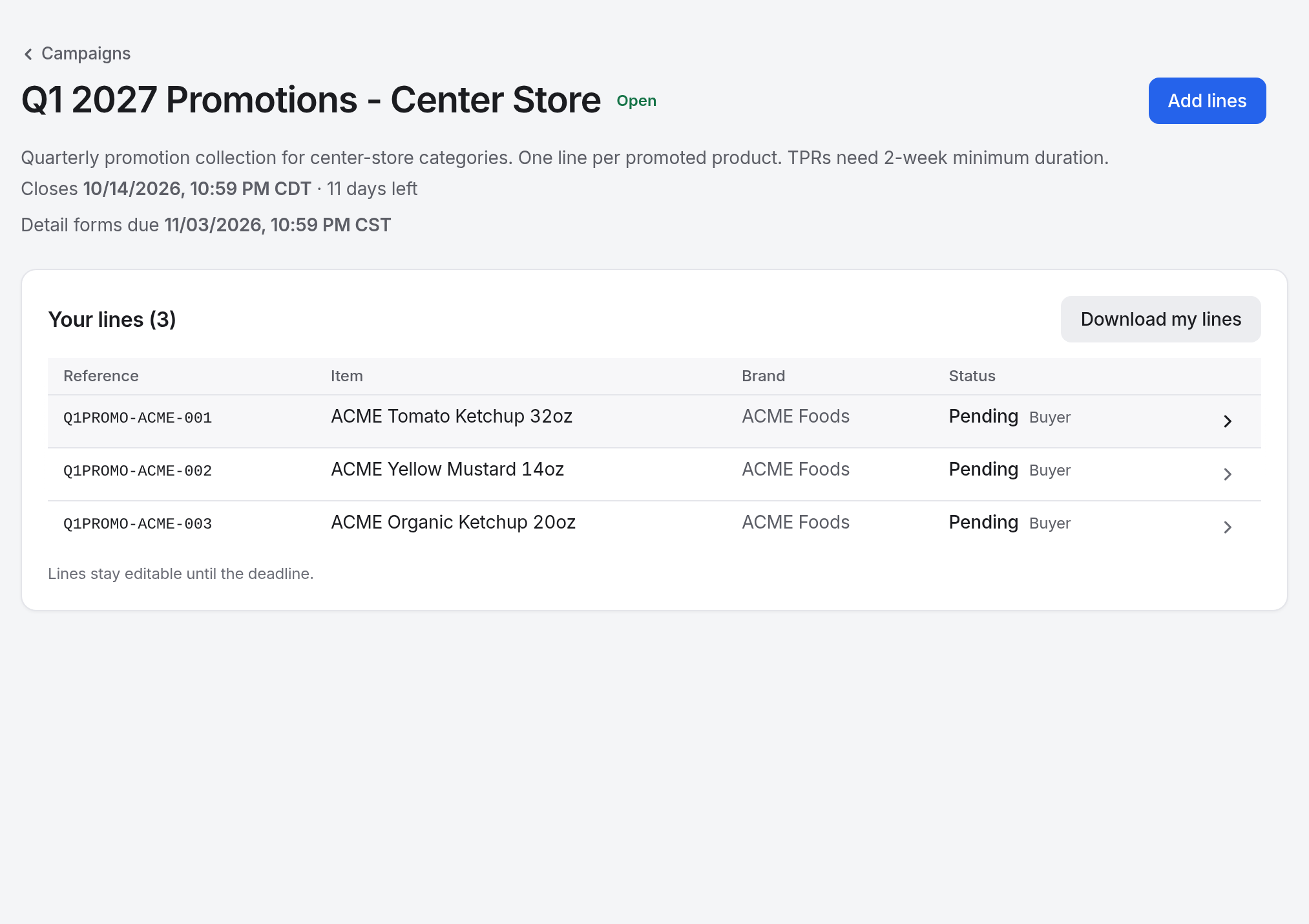
| Status | What it means |
|---|---|
| Pending | The buyer has it. You can change it until the deadline, and then the buyer decides. |
| Accepted | Accepted. If the buyer asks for a detail form, your Home page lists it as Form, with a Respond button. |
| Rejected | Turned down. The buyer's reason, if given, is on the line's page. |
| Withdrawn | You withdrew it. It stays on the record, struck through. |
Enter lines online
Open the campaign and click Add lines
Choose Fill out online
If you act for several brands, pick one under Submitting on behalf of.
Enter one row per line
Type into the grid, or copy a block of rows from your own spreadsheet and paste it into any cell. The button under the grid adds more rows.
Click Submit
A required cell left blank turns red, and nothing is sent until you fill it in. Each line gets its own reference ID.
The grid saves a draft a moment after each edit and shows Saved. To pick up later, click Continue on your home screen. The buyer sees no lines until you submit.
Upload a workbook
Click Add lines, then choose Upload Excel template
Download the template workbook and fill it in
Enter one row per line. Keep it as .xlsx.
Upload it and click Check my file
Your rows appear in the grid, marked where they need attention. Nothing is saved yet. Fix or delete rows, or click Discard and start over.
Click Submit
One submission holds at most 5,000 lines. For more, split the workbook and submit each part. Each submission adds to your earlier lines. When you upload a corrected workbook, tick Replace my previous lines to withdraw the earlier ones. To change lines you already sent, use Edit my lines.
Marked cells
When you paste rows or upload a workbook, the grid marks each cell it had to interpret.
| Mark | What to do |
|---|---|
| Red | The value can't be used, so the cell is empty. Point at the cell to see what it held. Fix every red cell to turn on Submit. |
| Amber | The value could be read two ways, for example 1,999 or 03/04/2027. Check that the reading is the one you meant. |
| Grey | The value was rewritten without changing it, for example 1,99 as 1.99. No action needed. |
To avoid amber and red dates, write dates as YYYY-MM-DD, or set Number and date format in Your nameSettings. See Troubleshooting for the common red-cell messages.
Change lines you filed
You can change a line until the deadline, or after it if the buyer grants edit access.
| To | Do this |
|---|---|
| Change several lines | Click Add lines, choose Edit my lines, change the cells, and click Save changes. Only the lines you changed are saved, and each keeps its reference ID. |
| Change one line | Open the line, edit its values, and click Save changes. |
| Withdraw a line | Open the line, click Withdraw this line, then Withdraw. |
| Keep a copy | On the campaign page, click Download my lines for a workbook of every line with its status. |
A line marked Incomplete is missing a field the buyer made required after you filed it. Fill it in before the deadline.
Answer the buyer
Requests from the buyer appear in Action required on your home screen.
| Request | What to do |
|---|---|
| Changes requested | Click Make changes in the email or on the campaign page. The buyer's note is above the lines to change. Change them and save, and they return to the buyer. |
| Detail form requested | Click Respond. Download the template if the buyer attached one, fill it in, and click Upload detail form. |
| A question on a line | Answer under Questions & notes on the line's page, so the answer stays with the line. |
At the deadline the campaign closes and your lines lock. To change a line after that, click Request edit access on the line or the campaign. If the buyer approves, edit and save. The line returns to the buyer marked as revised.
Read decisions
After the close, the buyer accepts or rejects each line. You get one email per brand for each round of decisions, listing each line with its outcome and the buyer's reason, if given. The same outcome shows on the campaign page and the line's page.
If you act for several brands
Every line is filed under one brand, so submit for each brand separately. Each brand has its own draft, and decision emails come one per brand.
To share your screen with one client, open the menu under your name and choose the brand under Brand filter. Every supplier screen then shows only that brand until you choose All brands. The filter does not reach your email inbox.
Good to know
- Every email also lands in Top barNotifications. See Notifications and email.
- You get a confirmation email shortly after each submission.
- If the buyer accepts late lines, Add lines stays available after the deadline, and the buyer sees those lines marked late.