For buyers
Review and decide
Filter the Received table, accept or reject lines, ask for changes, and control when suppliers hear.
5 min read
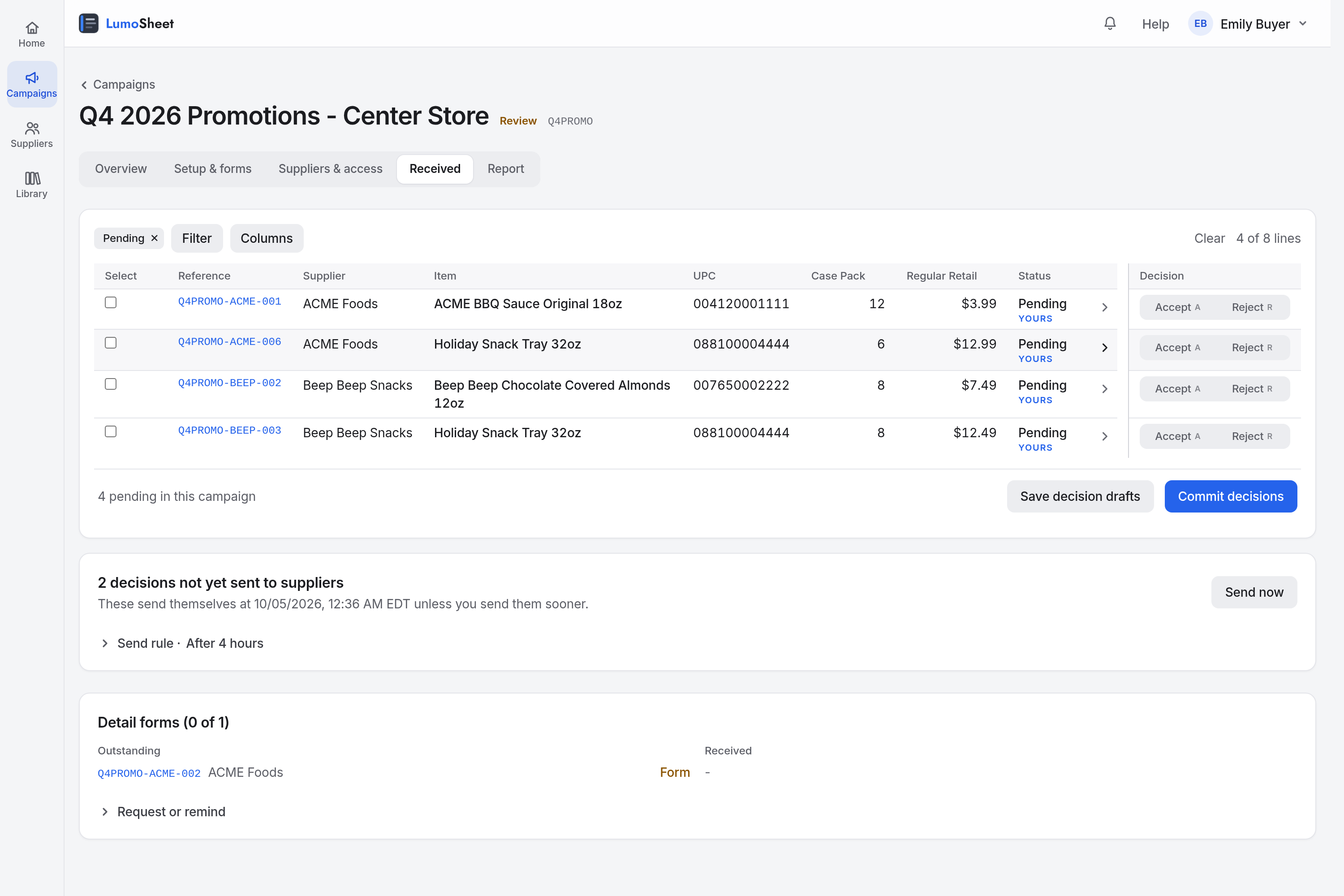
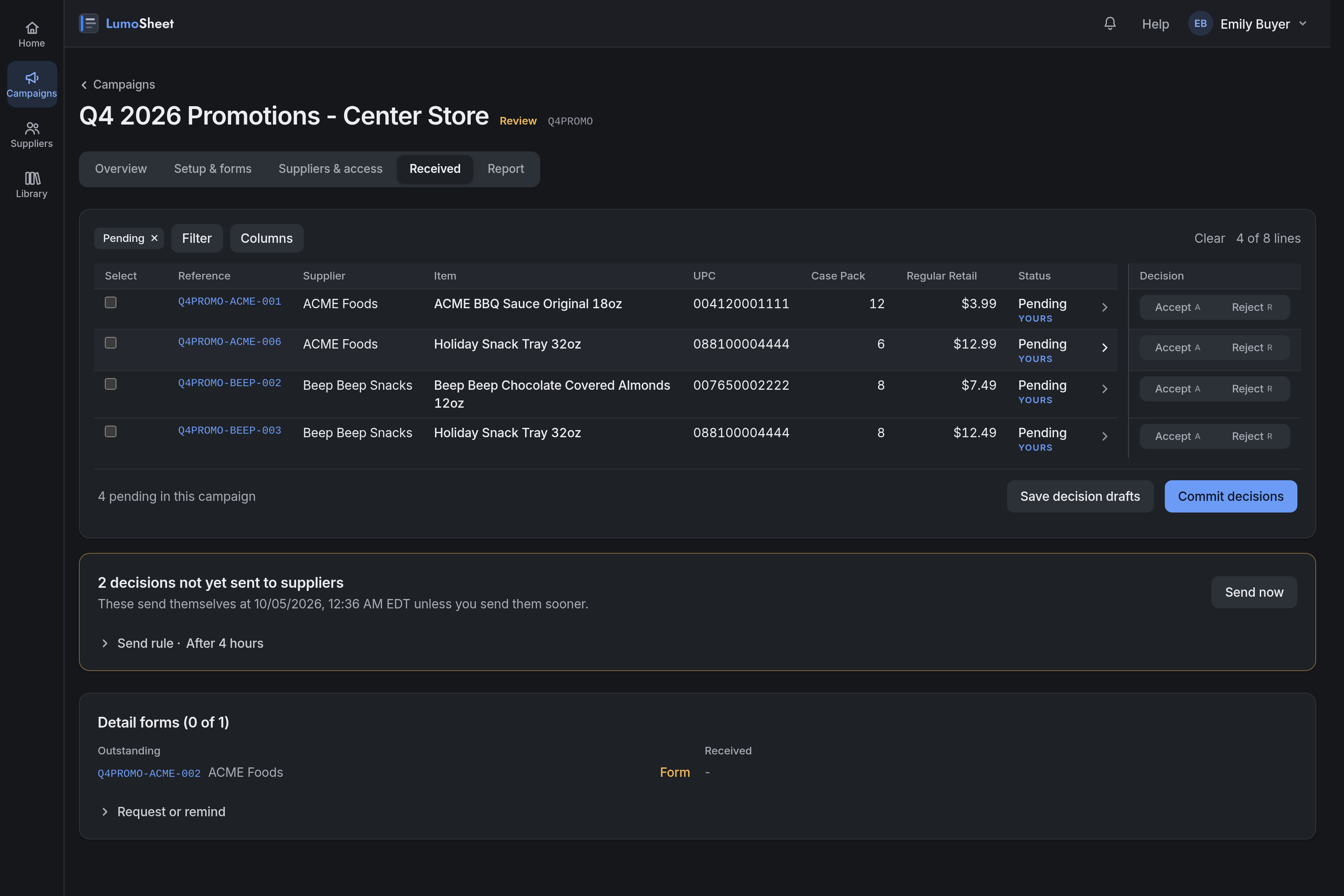
After a campaign closes, you decide each line on the Received tab: accept it, reject it with a reason, or ask the supplier to change it. Suppliers get one email per brand with your decisions.
The Received table
Received lists every line, one row each. It opens with the item and the next three form fields; to show the rest, or the date each line arrived, select Columns. Click anywhere on a row to open the line's page. Until the close, the table is read only. After the close, it opens on the lines still pending. A Late flag marks a line filed after the close under Accept late. An Incomplete flag marks a line missing a field you made required after it was filed.
Filter and save views
Click Filter
Filter by text, date, supplier, status, Decision communicated, Flag, or any form field. Under Show as columns, choose the fields to show. Then click Apply.
Save the view
Under Save this view as, enter a name and click Save view. The view appears as a tab above the table.
The filters are in the page address, so you can send a filtered view as a link.
Accept or reject lines
Pick a decision on each line
Click Accept or Reject. Reject opens a Reason for the supplier field, which the supplier reads. To decide several lines, tick them and click Accept selected or Reject selected, or press A or R.
Click Commit decisions
The lines change status. Until you commit, nothing is applied.
To stop part way, click Save decision drafts. You or a co-manager can continue from the drafts later.
To decide one line while you read it, open the line and use Accept or Reject on its page. The decision is committed at once, and the Reason field is what the supplier reads for a reject.
Ask for changes
When a pending line needs fixing rather than rejecting, tick it on Received and click Ask for changes, or use Ask for changes on the line's page. Write what should change, then send. The line stays Pending until the supplier saves, and then comes back to you flagged Revised.
For a question rather than a change, write in Questions & notes on the line's page. The supplier replies in the same place.
How suppliers hear
Committed decisions wait in the outbox on Received, where you can still change them. Each contact gets one email per supplier, and no decision is sent twice. To change the timing, open Send rule.
| Send rule | When decisions go out |
|---|---|
| After 4 hours | The default. Each decision sends once it has been unchanged for four hours. |
| When I send | Only when you click Send now. |
| On <milestone> | When that milestone's date passes. |
Send now sends everything waiting, under any rule.
Request detail forms
A detail form is the follow-up document you need for an accepted line. Attach a template in Detail-form settings on Setup & forms.
On Received, open Request or remind in the Detail forms card
Click Request for all
To leave lines out, open Choose individually, untick them, and click Request ticked.
To chase the ones still outstanding, click Remind suppliers on the Overview
Download and report
| What | Where |
|---|---|
| Lines as Excel or CSV | Export Excel or Export CSV in the campaign's More menu. |
| All attachments | Download files in the More menu: one ZIP, a folder for each supplier. |
| One campaign's numbers | The Report tab. |
| All your campaigns | View report on Campaigns. |
Good to know
- You can change a committed decision until the campaign is archived.
- Filter on Decision communicated: Not yet sent to see what has not gone out, and on Flag: Revised to see what suppliers changed.
- Duplicate on a line's page means the supplier sent the same required values twice.
- To close before the deadline, choose Close submissions now in the More menu.
For what suppliers see, read the supplier guide.