For buyers
Milestones and reminders
Add dates around the deadline, make them follow other dates or stay fixed, set reminder emails, and save plans for reuse.
4 min read
Milestones are the dates around a campaign's deadline, such as a mid-window check-in or a date that detail forms are due. Each one can send reminder emails to suppliers before or after it.
You set milestones on step 2 of the guided setup, and later in the Milestones & reminders card on CampaignSetup & forms. The calendar at the top shows the plan by month, and the table under it holds one row per milestone. Select a row, or its chip on the calendar, to edit it.
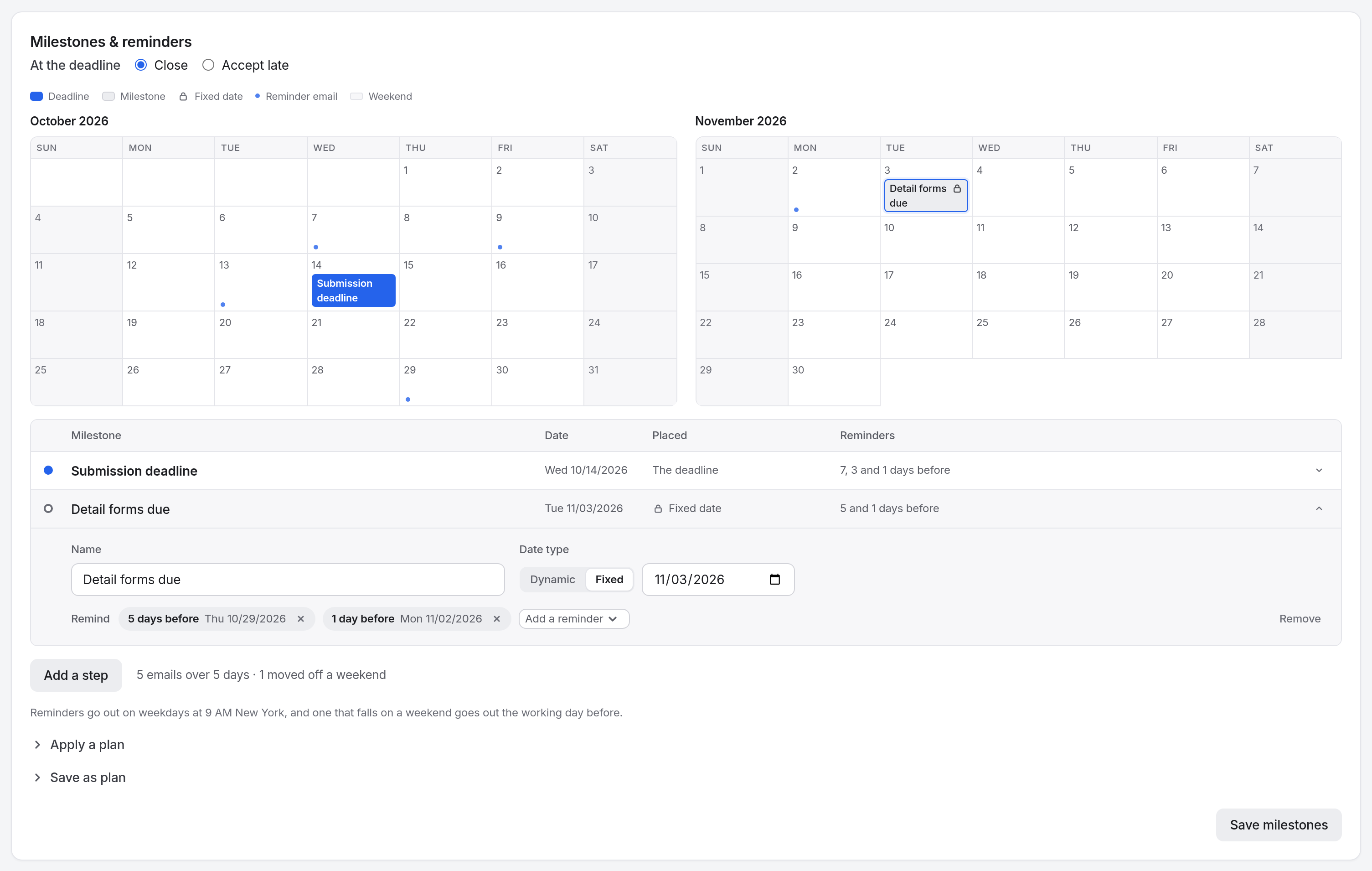
Add a milestone
Select Add a step
A new row opens at the end of the table.
Enter a name
The name appears in the reminder email's subject. Write
Detail forms due, notDF.Set the date
Choose Dynamic or Fixed under Date type. See Dynamic and fixed dates.
Select Save milestones
In the guided setup, the button reads Save and continue.
To delete a milestone, open its row and select Remove. You can't remove the deadline.
Dynamic and fixed dates
| Date type | How it works |
|---|---|
| Dynamic | A number of days before or after another milestone, for example 7 days before Submission deadline. When that milestone moves, this one moves with it. |
| Fixed | A calendar date. Nothing moves it. Use it for outside dates, such as a trade show. |
Moving a date in the middle
Submission deadlineFri 25 Sep
Mid-window check-inFri 18 SepMon 21 Sep4 days before the deadline
Detail forms dueFri 2 OctMon 5 Oct2 weeks after Mid-window check-in
Trade showTue 6 OctFixed date
Add reminders
Open the milestone's row
Choose from the Add a reminder list
Pick 14, 7, 5, 3, 2, or 1 days before, or 1, 3, or 7 days after.
Check the chips
Each reminder is a chip that names the day the email goes out. Grey chips are before the milestone, and amber chips are after it. To remove one, select the ✕ on its chip.
The foot of the editor counts the emails the plan sends, for example 9 emails over 8 days.
Milestone plans
A plan saves a set of milestones and reminders as distances from the deadline, so you can reuse it on any campaign. Plans are shared with your workspace.
Save a plan
- Under the editor, open Save as plan.
- Enter a Plan name and select Save plan.
Apply a plan
- Under the editor, open Apply a plan and choose one.
- Select Apply plan. It replaces every milestone except the deadline, with dates worked out from this campaign's deadline.
To edit your plans, go to LibraryMilestone plans.
Good to know
- Only the deadline closes the campaign. Other milestones send reminders and nothing else.
- Reminders go out at 9 AM in the campaign owner's timezone, on weekdays. A before-reminder that falls on a weekend goes out the Friday before, and an after-reminder the Monday after.
- Every invited contact gets each reminder, including those who have already submitted.
- A before-reminder for a date that has passed doesn't send.
- A mid-window milestone with its own reminder prompts suppliers well before the deadline.
- On a phone, the calendar is hidden and the table holds every control.