For buyers
Intake forms and field types
Build the form suppliers fill in, choose field types and how numbers show, add rules, and reuse forms as templates.
5 min read
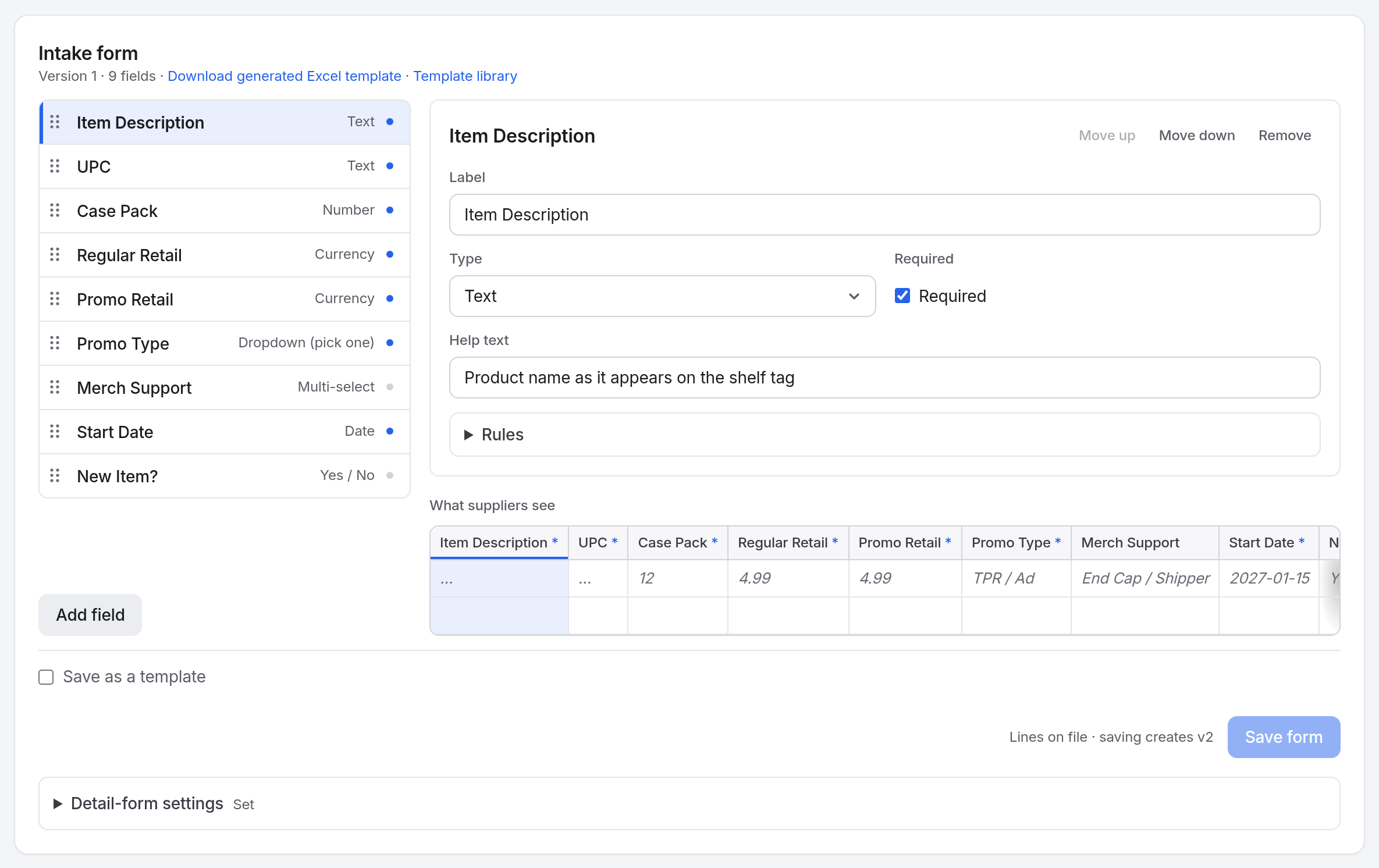
The intake form is the set of columns suppliers fill in. You build it once, and both the online grid and the Excel template come from it, with the same checks.
Build a form
The form builder is step 3 of the guided setup, and later on CampaignSetup & forms.
Select Add field
The new field opens in the panel beside the list.
Enter a label, choose a type, and tick Required if suppliers must fill it in
The label is the column heading in the grid and in Excel. Write it for the supplier.
Fill in what the type needs
Add Options for a dropdown or multi-select, a Formula for a calculated field, and Help text for anything suppliers often get wrong.
Optional: open Rules
Add a length, a range, a date window, or a comparison. See Rules.
Put the fields in order
Drag a field in the list, or use Move up and Move down. The order is the column order in Excel.
Select Save form
In the guided setup, the button reads Save and continue.
Field types
| Type | Use it for |
|---|---|
| Text | Descriptions, UPCs, notes. |
| Number | Counts, quantities, percentages. |
| Currency | Prices, allowances, costs. |
| Dropdown (pick one) | One choice from your list. |
| Multi-select | Several choices from your list. |
| Date | Start and end dates. |
| Yes / No | A yes or no answer. |
| File attachment | A sell sheet or image. Suppliers attach it on the line's page after they submit. |
| Formula (calculated) | A number worked out from other columns, such as a discount or a margin. Nobody fills it in. |
File attachment and Formula fields are always optional, and neither appears in the Excel workbook.
How numbers show
Number, Currency, and Formula fields let you choose how the value shows. The setting changes the display only. The stored value is what the supplier typed.
| Type | Your choices |
|---|---|
| Currency | Always shown as money in your workspace's currency. Set Decimal places. |
| Number | Shown as Whole number, Decimal, or Percentage (%). Decimal and Percentage also take Decimal places. |
| Formula | Shown as Whole number, Decimal, Percentage (%), or Currency, and Decimal places for all but Whole number. |
A sample value beside the setting shows the result.
Rules
A rule says what a value must be beyond its type. Open Rules at the foot of the field's panel. The grid, the upload read-back, and the server all check it, with the same message.
| Rule | Types | Example message |
|---|---|---|
| Digits only | Text | UPC must be digits only |
| Length | Text | UPC must be 12 digits |
| Allowed values | Number, Currency | Case Pack must be between 1 and 48 |
| Allowed dates | Date | Start Date must be on or after 05/01/2026 |
| Compared with | Number, Currency, Date | Promo Retail must be at most Regular Retail |
Change a live form
Once suppliers have filed lines, saving the form creates a new version. Lines already filed keep their values.
| Change | What happens |
|---|---|
| Add an optional field | Nothing changes for suppliers who have already submitted. |
| Add a required field | Lines without it are flagged Incomplete, and their suppliers get an email. Remind suppliers on the Overview chases them again. |
| Remove a field | It leaves the grid and the workbook. Values already collected stay on their lines and in exports. |
Templates
To save a form for reuse
Under the builder, tick Save as a template, enter a name, and select Save template. Everyone in your workspace can use it.
To apply a template to a draft
Open Import a template, choose one, and select Use template. If the form has fields, the button reads Replace form and replaces them all.
To edit your templates
Go to LibraryIntake forms.
Good to know
- Add help text where people make mistakes, such as
12-digit UPC. It shows in the grid and in the workbook. - Percentage adds a % sign and doesn't multiply by 100. Write a formula so it returns 25 for 25%.
- A file field can't be required, because a workbook can't carry a file. To insist on a document, ask for it in a detail form once the line is accepted. See Received.
- Suppliers can reorder or hide columns in the workbook, and it still uploads.